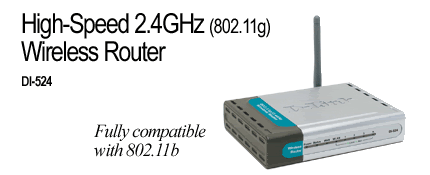
This is how u set up encryption on yur D-Link DI-524
wireless router.
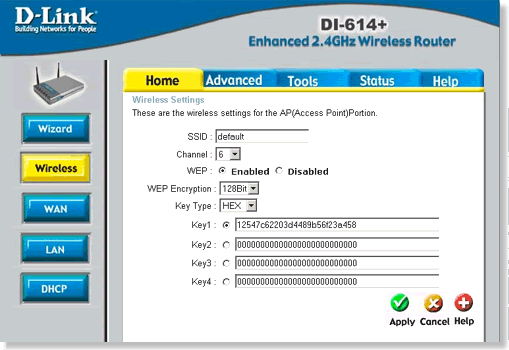
1. Log into the web configuration of the router by opening up a web
browser and typing in the IP address of the router
(192.168.0.1).
2. Enter your username (admin) and your password (blank by
default). Click OK . Click the Home tab and click the Wireless
button on the left hand side of the screen.
3. Select Enable next to the WEP radio buttons. For WEP encryption
select 64, 128, or 256-bit encryption. For the Key type select HEX.
If you have an option for Authentication type, select Shared
Key.
4. Select Key 1. Length of characters depends on the level of
encryption.
- 64-bit encryption, 10 characters
- 128-bit encryption, 26 characters
5. Click on the Apply button then click on the Continue button to
save your settings.
For enabling encryption on wireless adapter DWL-G122 ( For
Win XP SP2 )
1. Right-click the wireless icon in the system tray (the area in
the lower right-hand corner of the screen, by the clock) and select
View Available Wireless Networks.
2. In the Wireless Network Connection window click Change advanced
settings on the right side below Related Tasks.
3. Uncheck Use Windows to configure my wireless network
settings
4. Double click on the "D" Icon on the bottom right of the
screen.
5. Click Site Survey on the left side and select the SSID of your
wireless access point or router on the right side and then click
Configure.
6. Change the Data Encryption field to Enabled. Authentication Mode
should be set to Shared Authentication. Under Key Length, select 64
or 128. Click on Default Key 1 and enter the Hex encryption key
that was entered into the wireless router or access point. The key
length will depend on the selection made under the key length. The
key is HEX, meaning A-F and 0-9.
7. The SSID of your wireless network will appear below Profile.
Highlight your SSID and click Connect.