PICTURE INTENSIVE
WARNING
Computer Hardware
Assembly Guide
Before assembling your system, you need to have parts to build. You
can take a look at the possible configurations over at the DIY PC CONFIG
GUIDE
General Components of a System:
Central Processing Unit + Motherboard/Mainboard(Short form
"mobo")
Random Access Memory (RAMs)
Graphics card/Graphics processing Unit(GPU), if your motherboard
does not comes with onboard graphics
PowerSupplyUnit(PSU)
Hardisk
DvD Drive
Casing/Chassis- it is important to buy a casing that will fit your
motherboard's formfactor(the size) and graphics card(some high end
graphics card are very long and may not fit in small casings)
Other possible components:
Soundcard
TV Tuner
Wireless Adaptor
Tools needed:
1.philip head screw driver, best to have a magnetic tip to retrieve
screws stuck in hard to reach area in the
casing.
2.Torchlight(optional), most of the time not needed
Step One: Prepare the Casing for installation
===================================================
Installing the Power Supply if your casing does not come with
it
Take out the I/O shield from your motherboard's box,:
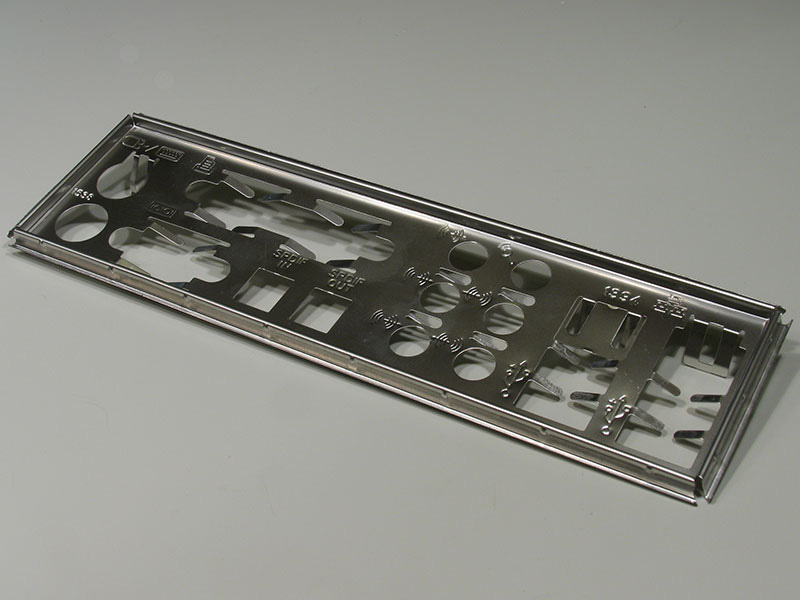
*Picture taken from
http://www.techpowerup.com/articles/144/images/6ioshield.JPG
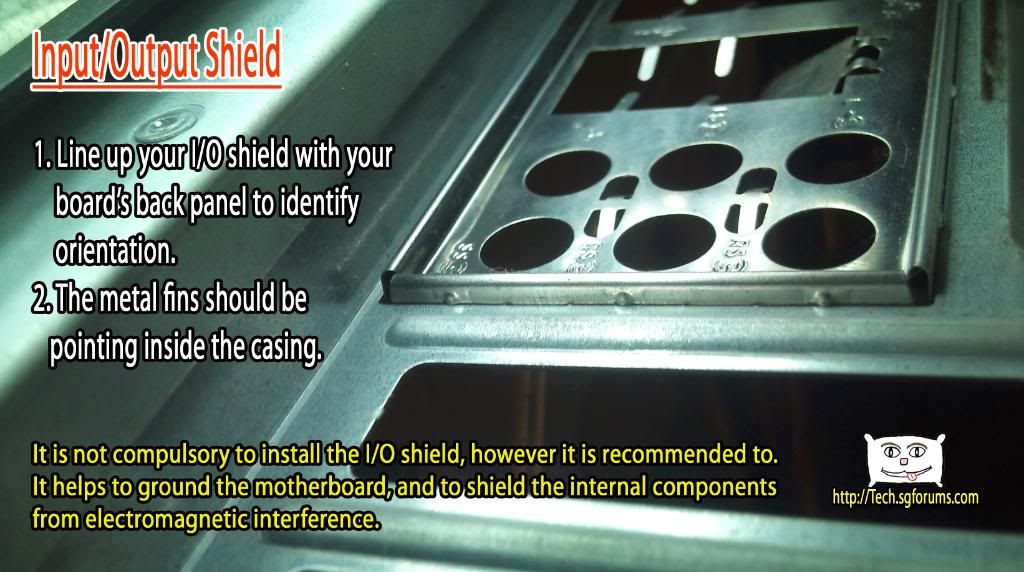
Line it up with the back of your motherboard to determine how it
is oriented. Usually the input for keyboard and mouse are on
top.
YOUR I/O shield may be used for other models of motherboard with
similar design, thus, you will find extra holes on your I/O shield,
usually this is covered. However those covered holes can be broken
off easily to fit your motherboard's I/O.
You may also be bigger 'metal fins' that is covering certain ports
like-PS/2 keyboard or the lan port- just push them all the way back
so that it does not block the ports after installation backpanel or
I/O of motherboard:
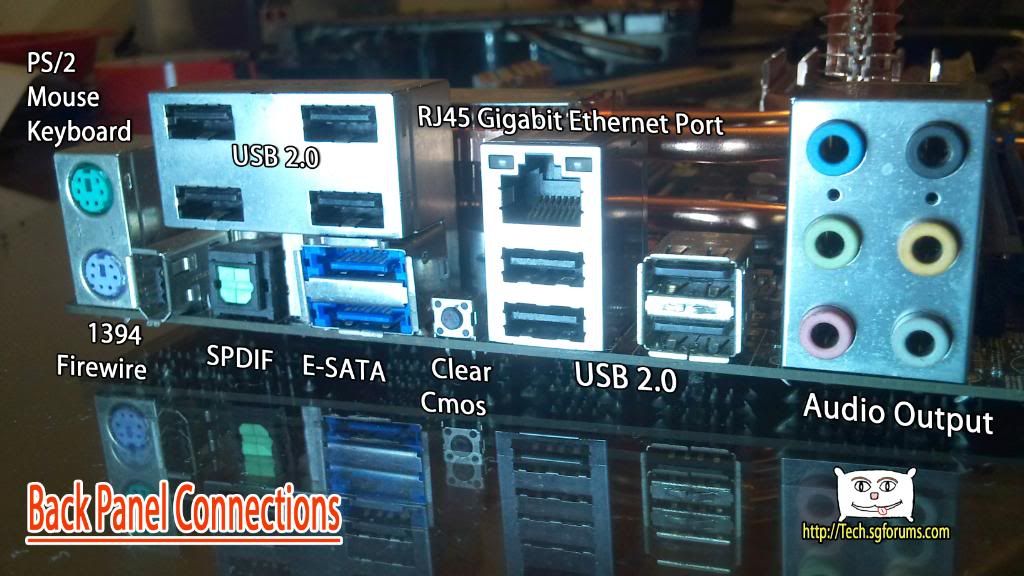
When you look at your case, it may have already come with a I/O
shield, if it fits then you can use it(most of the
time it will not fit), or if not you can use the one that comes
with your motherboard
Install it at the upper top at the back of your case, after
installation, it will look like this:
-----------------------------------------------------------------------------------
Also inside the Case you will find a series of screws.
See which screws are for which components
here
Different screws are for different components, but if the screw
fits securely without the need of excessive force, it is fine
Some casings are tooless, meaning the case allows you to install
components like DVD drives and hardisks without the need of
screws.
There are also casings which comes with fitting to secure your
graphics card without screws.
It is fine if your graphics card is not very heavy, but if you are
running a high end graphics card with large heatsink, it is
recommended to use screws instead to secure the card
-------------------------------------------------------------------------------
Now for the more important type of screw, called
spacers/standoff:
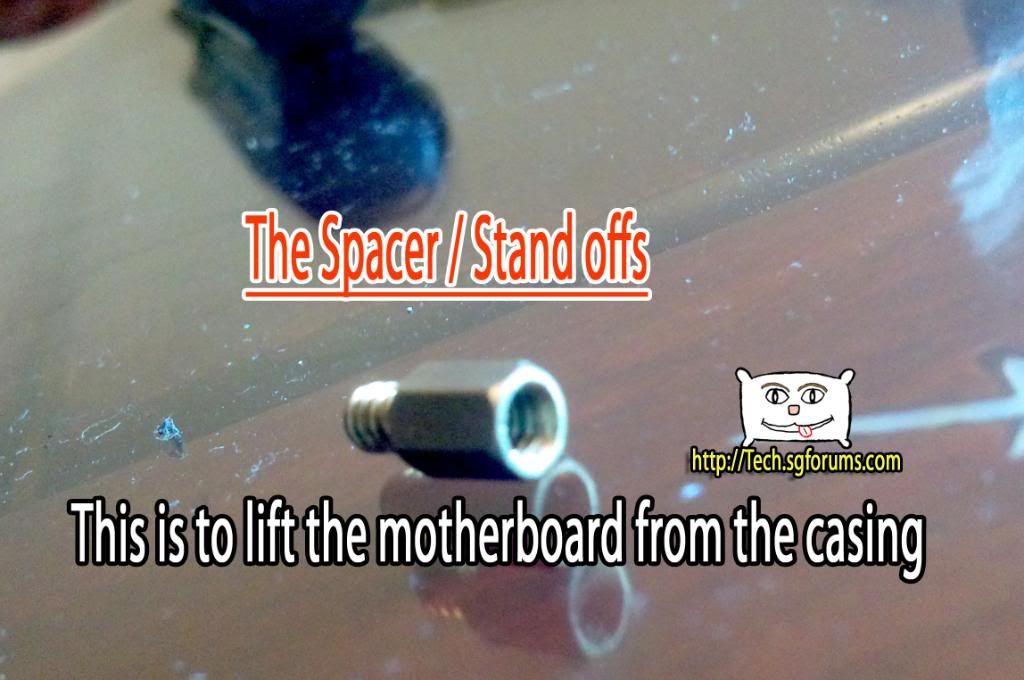
This is to be screwed onto the PREDRILLED holes on your
casing.
Location to install these standoffs are depended on the form factor
of your motherboard.
The easiest way is to look at the motherboard, and look at the
casing to determine which are the mounting holes.
Mount the stand offs
------------------------------------------------------------------------------------
Leave your case aside for the moment