This tutorial is telling you the way to convert FLV to mp4
format, for you to enjoy videos downloaded from YouTube and Google
Video, etc, and enjoy them on your mobile devices, such as iPod,
iPhone, iPad, PSP etc.
First of all, we must make it clear that the YouTube videos and
Google videos are FLV file format. FLV (Flash Live Video file) is a
preferred file format that is designed for web playback, offering
high rates of compression to deliver video over the internet using
Abobe Flash Player. FLV content cannot be played back directly. It
must be embedded in a SWF file. You create (or download) a
"container" SWF file from which to play the FLV file. The most
common approach is to use an SWF file to function as a media player
with screen and playback controls.
In order to put FLV videos in your mobile devices, you may need
to convert them to other files, like to MP4. MPEG-4 extends the
earlier MPEG-1 and MPEG-2 algorithms with synthesis of speech and
video, fractal compression, computer visualization and artificial
intelligence-based image processing techniques.
To converter FLV to MP4 format, you need to download a converter
software, here we recommend you Aneesoft Free FLV Video Converter. This soft is
totally free software but have powerful function. Following we will
use this software to show you how to convert FLV to MP4 video step
by step.
Step 1: Download & install Aneesoft Free FLV Video
Converter
We'll be using the very nice video converter software called
Aneesoft Free FLV Video Converter for converting FLV videos to MP4
video format, head over here and download the free trial version of Free FLV
Video Converter. Next step is to install Free FLV Video
Converter.
Step 2: Run Free FLV Video Converter and add
videos
Now run Free FLV Video Converter and click
the big button "Add..." to add videos from your hard disk, you may
add as many videos as you want to convert to MP4 video format. Only
the titles you checked will be converted.
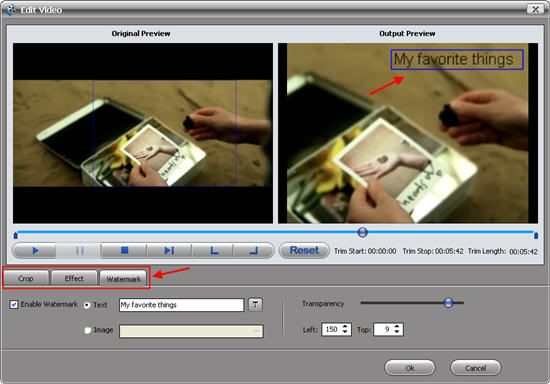
Step 3: Edit & merge videos: trim, crop, add effect,
add watermark
This Free FLV Video Converter program has two versions. The free
version is function-limited. If you'd like to edit and merge your
videos, you need to upgrade to the pro version.
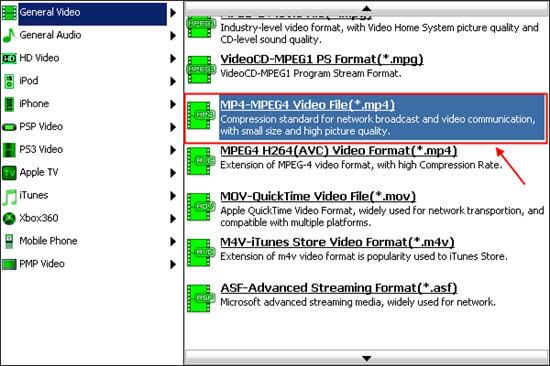
Step 4: Set the output to MP4 video
format
Change the output settings to MP4 format to
convert videos with best quality. Besides MP4, almost al popular
video formats are available for you to choose to convert. You may
convert FLV to different video formats for video editing or
playback on your mobile devices, such as iPod, iPhone, PSP,
cellphone, etc. Remember that the output file size mostly depends
on the Bitrate you set. Larger Bitrate, larger file size. Actually
video with bitrate as 768 is acceptable for watching.
Step 5: Start converting FLV videos to MP4 video format
for free
Now you may click the big button "Start" to begin converting videos
to MP4 videos. An "Upgrade to Aneesoft FLV Video Converter Pro"
window will pop up. If you wouldn't like to upgrade, just click
"No, thanks" to continue converting your videos to FLV video
format.
Once the convert is complete, Aneesoft Free FLV Video Converter will place on your
Desktop a new AVI format version. Double-click the new file and
play it to make sure it looks as you expect. I bet you'll be
surprise at the video quality, just like me.