This guide aims to show you that how to backup your iPod songs
and videos on your computer for Windows and Mac users.
It includes 2 parts:
Part 1: How to transfer iPod songs and videos to computer
for Windows users
Part 2: How to transfer iPod songs and videos to
Mac.
Part 1: How to transfer iPod songs and videos to computer
for Windows users
Software Requirement: It is a powerful iPod to computer transfer
that can transfer all the iPod things to your computer; most
importantly it supports all the iPods, from the oldest one to iPod
nano-chromatic.
Step 1: Connect your iPod to your computer
When you plug your iPod into your computer, Aiseesoft iPod to
Computer Transfer can automatically load your iPod into it.
Step 2: Choose songs
Choose the songs, videos, and other things that you want to backup
at the top of the window. (1)
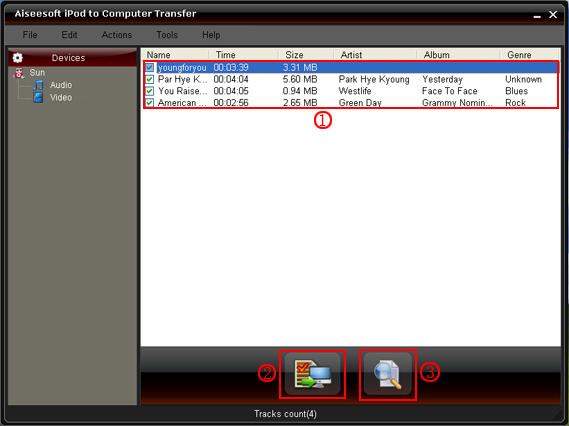
Step 3: The most important and the last thing you
need to do are to click the “export to pc” button. (2). After you
click “export to pc” button a pop-up window will appear and with it
you can choose where you place your iPod songs and videos.
Few seconds later you will have your iPod songs, videos and other
things on your computer.
Part 2: How to transfer iPod songs and videos to
Mac
-removed by moderator-
And install it.
Step 2: Plug your iPod to your Mac and run
Aiseesoft iPod to Mac Transfer. It will find your iPod
automatically.
Step 3: Just click Music and all of your music on
your iPod will be listed, so you can pick up which songs you want
to transfer. (Click “Video”/“Picture”, if you want to backup your
videos and image.)
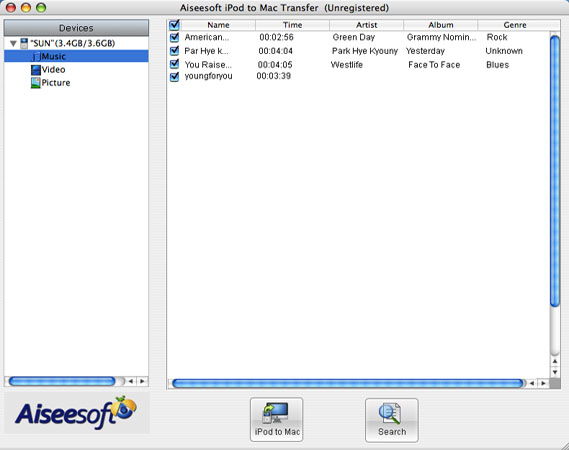
Step 4: Click “iPod to Mac” and few seconds later
you will get your iPod songs on your Mac.
For all the users of iPod, this two iPod transfer can help you to
backup all your iPod info, and you do not need to worry about loose
them.