Maybe .mp4 and is the most popular video formats right now,
because iPod, PSP, Apple TV, iRiver, Sansa, and other popular
portable media players are accept .mp4 video format. If you have or
are going to buy those PMP, you must want to put DVDs and videos
you have on them.
This guide will show you how to convert DVDs and videos to .mp4
video format.
I use a really nice converter:
Aiseesoft DVD to MP4 Suite for Mac
Download it here:
For Intel:
http://www.aiseesoft.com/downloads/mac/dvd-to-mp4-suite-intel.dmg
For Power PC:
http://www.aiseesoft.com/downloads/mac/dvd-to-mp4-suite-power-pc.dmg
Part 1: How to convert DVDs to .mp4 format.
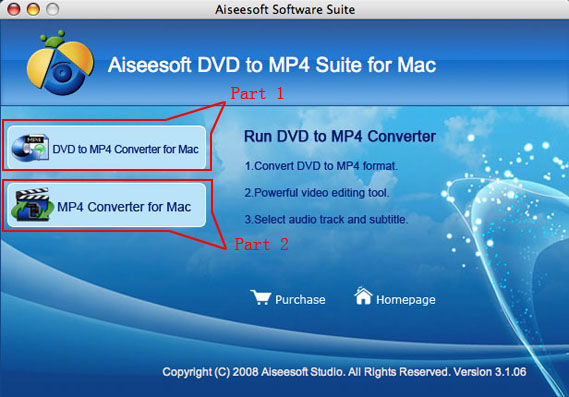
Step 1: Run Aiseesoft DVD to MP4 Suite for Mac and choose
“DVD
to MP4 Converter for Mac"
Step 2: Load DVD
Put your DVD into your Mac and click “Load DVD”.
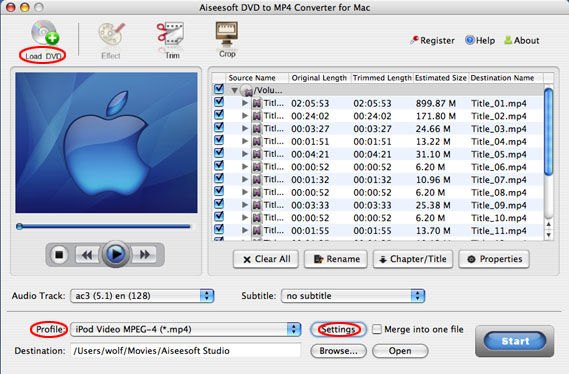
Step 3: Choose output profile and settings
You can choose output profile from a drop-down list and adjust the
settings of the output video by click “settings” button.
Step 4: Video editing work
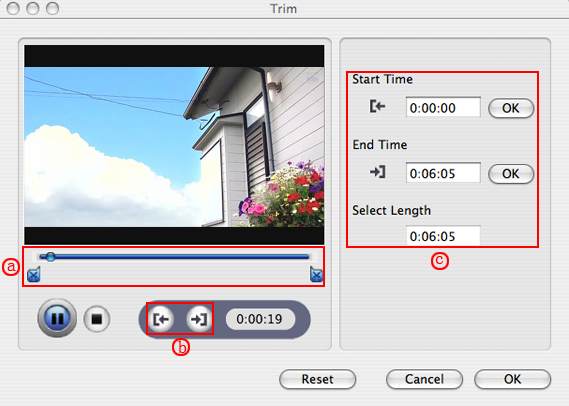
1. Trim
If you want to rip only a part of the DVD movie, please
click “Trim” button and drag the “Start trim slider” to set the
start time and “End trim slider” to set the end time.(a). You can
also do that by clicking the “Start trim button” and “End trim
button” (b). The third way you do that is set the exact Start/End
time at the right of the pop-up window and click “OK”.
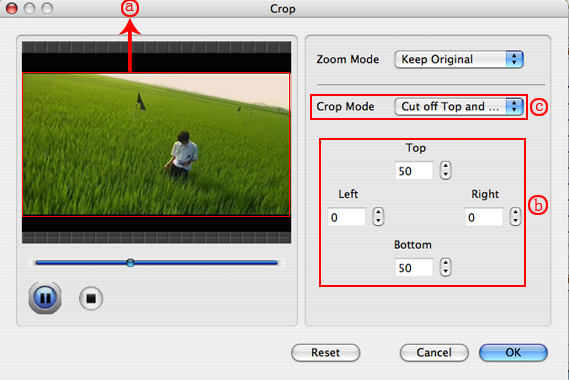
2. Crop
If you want to remove the black edges or you want to rip a certain
area of your video, please click the “Crop” button. You can do this
either by drag the frame around the movie (a) or set the crop
value: “Top, Left, Bottom, Right”.(b). Another way to do that is
choose mode from “Crop Mode”(c).
Aiseesoft DVD Ripper for Mac also allows you to choose the output
aspect ratio above the crop pane, “Keep Original, full screen, 16:9
and 4:3” are available.
3. Effect
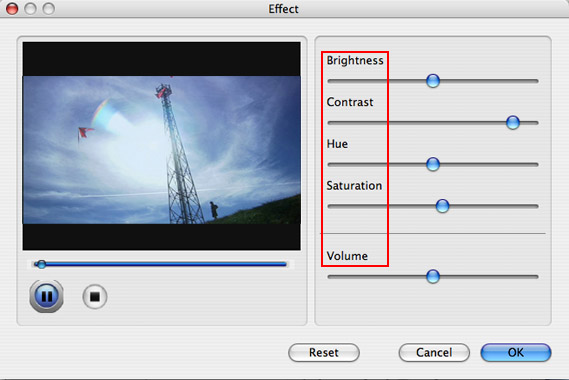
If you want to adjust the effect of your movie, please click the
“Effect” button and a pop-up effect window will appear. It allows
you to edit your movie’s effect including “Brightness, Contrast,
Hue, Saturation and Volume”.
4. Merge into one file/audio track/subtitles
If you would like to put several titles and chapters into one
output file, please tick the check box of the “Merge into one
file”.
You can choose audio track and subtitles you like according to what
you prefer and the DVD supports.
After doing the 4 steps you can click “Start” to begin your
conversion.
Part 2: How to convert video to .mp4 format
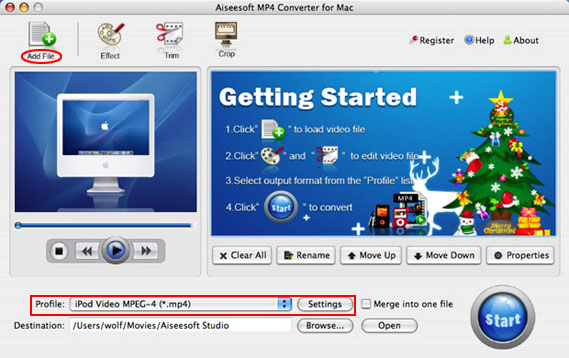
Step 1: Choose “MP4 Converter for Mac"
Step 2: Add your video.
Click the “Add file” button to load your video.
Step 3: Select output format from the profile list and
settings.
Selecting output format is really easy; you can choose your output
format according to your devices players and the default setting
works great.
The video editing operation is the same as part 1.
Just click “Start” button and a while later, you will get your mp4
format video.