Block advertisements
For Firefox users, you are lucky. There's this addon called Adblock
Plus, you can use it to block anything that you like. It only works
for Flash, images and links.
https://addons.mozilla.org/firefox/1865/
Install it and restart Firefox. Firefox must be restarted in order
for it to work. This means closing it and opening it again.
To add irritating images to the list, right click and select
Adblock image.
For Flash, there will always be an Adblock word on top of the Flash
advertisement. Just click on Adblock, a window will open. Click OK
to add this advertisement into the filter.
For Internet Explorer users, you can edit some Windows files to
block them.
It works for basically everything, but you must be able to convert
them into links in order to block them.
Go to here: Go to C:\WINDOWS\system32\drivers\etc for Windows
XP
C:\WINNT\SYSTEM32\DRIVERS\ETC for Windows 2000
C:\WINDOWS for Windows 98/ME
This is the default location where the hosts file is located. If
you didn't install Windows in the default location, just use the
search function to search for it. The file name is called
hosts.
When you try to open it, Windows will prompt you what to it with.
Choose Notepad. Use only notepad and no others, otherwise you will
corrupt it.
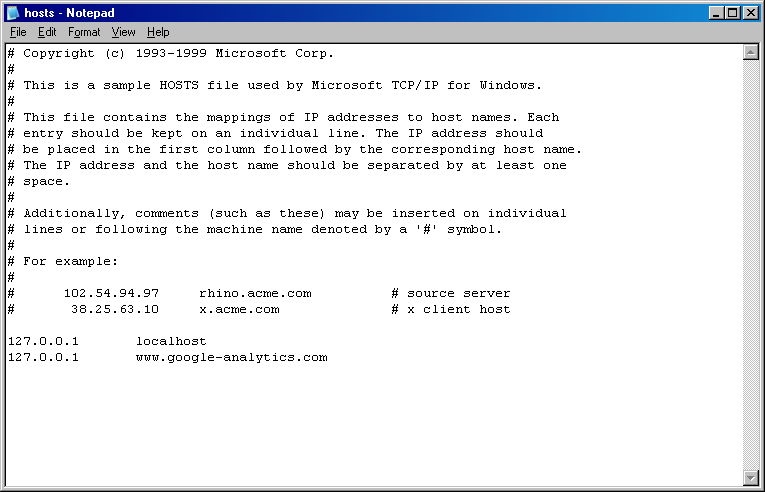
Type in 127.0.0.1 followed by the address you wish to block.
For example, the slim ads in sgforums
Note: Do not use the asterisk (*) extensively, or else you may
block yourself from accessing some sites.
For example, Google has lots of advertisements. Instead of
*.google.com, type in this:
Type in *.google.com will make Google inaccessible. You will get a
404 error, page is not found if you do that.
Here's a whole list of addresses to block: http://www.mvps.org/winhelp2002/hosts.txt
Don't make the file too big, or else your Windows will lag.
The editing of hosts file works for all browsers, since not all
browsers have great addons like Firefox.
Do not edit anything in the hosts file, except adding in the
advertisements.
An example below:
Avant Browser (beta)
Tools > Avant Browser Options
Under Category, select Ad Blocker.
In the Blacklist tab, click Add. Type in ads.slim.com and press
Enter.
Make sure you enable Ad Blocker at the bottom.
Maxthon Browser
Options > Maxthon Options
In the left column, click Ad Hunter.
Click on the Popup Filter tab. Click on Blacklist. Click on the
green "+" button.
Type in ads.slim.com
Do the same for Content Filter.


