When PSP crash into your digital life,do you have problems of
ripping DVD movies to PSP with good video and audio quality?
iSkysoft DVD to PSP Converter can easily
solve the problem with just a few simple clicks. To rip your DVD
with iSkysoft DVD to PSP Converter, you can just following the
steps below:
Step 1: Download iSkysoft DVD to PSP Converter and install the
program.
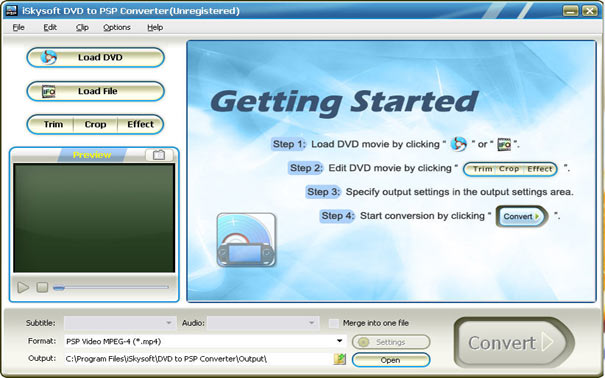
Click the Load DVD button, browse your computer, find the DVD
folder of the movie you want to add from your hard disc or DVD-ROM,
open your DVD folder, select the VIDEO_TS folder and click
OK.
Or, click the Load IFO button, browse your computer, find the DVD
folder of the movie you want to add from your hard disc or DVD-ROM,
open your DVD folder, open the VIDEO_TS folder, select all the IFO
files and click OK.
After you add your movie, you can choose any titles or chapters
that you want to convert by ticking the check boxes before
them.
Step 2: Output Settings

At the bottom of the main window, you can name the output file for
the current title/chapter, and select a subtitle to put on your
movie, select an audio track. Then finish all the settings
including selecting an output format, clicking the Settings button
to set the video and audio encoding settings, choose if to merge
the selected titles or chapters into one file, and set an output
directory to save the output files.
Step 3: Start Conversion
After setting the output settings, you can just click the Convert
button to start converting your Movie. You can choose to shut down
your computer or open the output folder after conversion so you
dont have to sit before your computer waiting for the conversion
to finish.
Advanced Options
If you want to edit your movie before converting it, iSkysoft DVD
to PSP Converter for Windows provides your with various powerful
functions including:
1. Trim DVD Title or Chapter
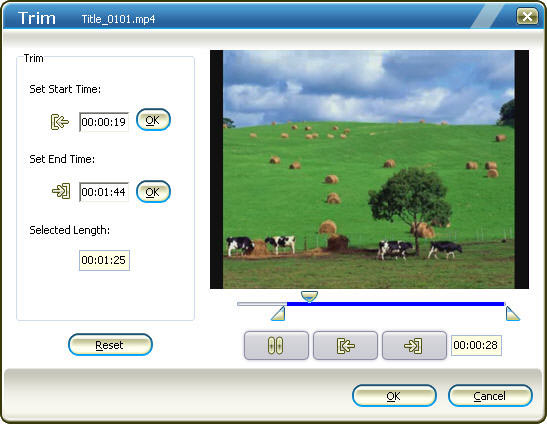
If you want to capture a clip from the current title/chapter, you
can click the Trim button to open the Trim window and trim the
current title or chapter by dragging the Start Time slider to set
the start time, and dragging the End Time slider to set the finish
time.
2. Crop DVD Video
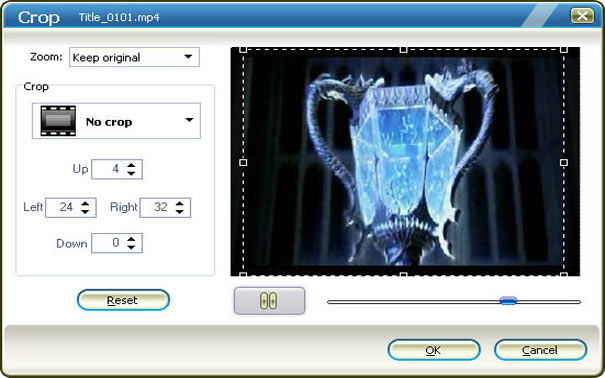
If you want to remove the black edges or just convert an area from
your movie video, you can click the Crop button to crop the video
of the current title or chapter. You can specify an area
either by dragging the frame around the video or setting the crop
values: Top, Button, Left and Right.
3. Video Effect
If you want to adjust the video effect of your movie, you can click
the Effect button and drag each effect adjustment slider to set the
video brightness, contrast, saturation and video volume. You can
also choose a special effect from the Effect drop-down list to
apply to your movie.

DVD to PSP
