You may have purchased many songs
from iTunes online store. It will be ok if you just play it on your
computers with iTunes, or on your iPod. You
may have also purchased some DRM protected wma audio files from
Napster, Rhapsody, Yahoo Music or some other
websites.
However, you may need to
use these DRM protected audio files for some legal
personal use such as inserting the music
in a Power Point presentation, listening it on your mp3 or mp4 player like
creative Zen, Sansa players, Anchros and PSP, or on your mobile
phone like Nokia N-series and BlackBerry. Unfortunately you will find
that you are not
allowed.
All these
iTunes M4P and M4B files and DRM wma audio
files are restricted. Is there any way to
remove this DRM protection and convert the iTunes songs
and DRM wma to widely used mp3
files?
Of course, you can and
there are some ways that can achieve
the goal.
(1) In
iTunes, these DRM protected songs can’t be burned to mp3 CD disc,
however, you can burn them to audio CD, and then use an audio
ripper to rip the tracks from the CD. It may be a waste of CD discs
when you have plenty of songs which need to be
converted, also it’s hard to keep these heavy
discs.
(2) Use the
program named Noteburner
for Windows XP and Vista. If
you are using MAC
OS X, please
try Tune4MAC,
it’s the MAC version of
Noteburner.
Noteburner has won the award of top DRM removing tool and the third place of audio
converter review by Top
Ten Reviews, please refer to Audio Converter Review by Top Ten Review. Noteburner will install a virtual
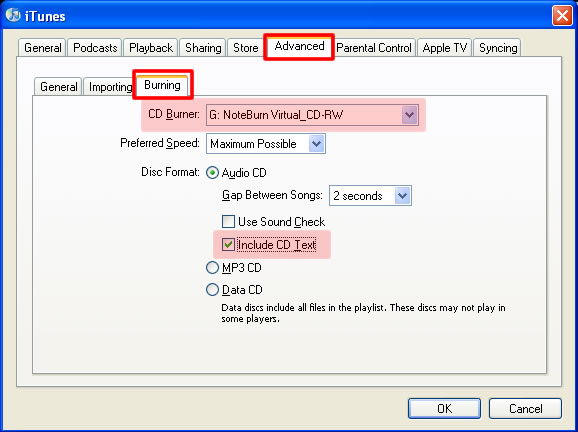
CD burner on your computer, what you need to do is just to set it
as default CD burner in iTunes. Open iTunes, operate by Edit -->
Preference --> Advanced --> burning, and set Noteburn Virtual
CD_RW as your CD burner. If you want to preserve the tags
information, including artist, song title, album name, track
number, artwork etc,
you need to check the option “include CD text”. Not only m4p files
can be converted, but also audio book in m4b format or AA format can be converted to
mp3 in iTunes with Noteburner virtual CD burner.
Noteburner can also remove the DRM protection of wma
audio files. In this case, you need to use Noteburner with Windows
media player, and set Noteburner as your
default CD burner in Windows media player. After setting
the virtual burner, just burn the playlist as what you do to burn a
real audio CD.
Generally speaking, if a media
player supports CD burning feature, and the audio formats can be
played with it, you can use Noteburner to convert
other unprotected audio files
too.
So you can finish
burning and ripping and get
high quality mp3 files with a virtual CD
burner in amazingly fast speed. The outstanding design of
virtual CD burner is also imitated by some other DRM removing
tool.
(3) Use the
program named Notecable. This
program can also convert DRM protected iTunes m4p and m4b audio files
and wma audio files. It works as a
virtual sound card recording audio streams in background. The
advantage of Notecable is that it’s very easy to use.
There are some DRM removing tools and it’s thought
to be the easiest one, however, the features of Notecable are
powerful enough and it won’t be inferior than other tools.
Click “add” button to add the files you need to
convert, click “settings” button to
choose output format, bitrate, output folder, then click
“convert” button to start conversion. If you want
convert at a faster speed, you can click settings button and adjust
the “convert acceleration” bar.
(4) Use the
program named Tunebite. It records the sounds with a real audio
device, however, you need to import lame.exe to convert the files
to mp3 files.
(5) Some other DRM removing
program. Some also use virtual cd burner and the others use
recording.